Showing posts with label Dropbox. Show all posts

Monday, November 28, 2016

Scan documents with your phone directly to Dropbox

Dropbox recently added the ability to scan documents directly to Dropbox using the Dropbox app on your iPhone. I’m finding that I use this feature several times a week. Even though I have a Fujitsu ScanSnap iX500 document scanner on my desktop (which is awesome, by the way), the Dropbox app is great for scanning receipts while on the road, or quickly sharing a print document via email or text.

Available only for iPhone at this point (not iPads or Android devices), the app works like this:

1. Download and install the Dropbox app for iPhone

2. Run the app

3. Tap the “plus” button at the bottom of the screen

IMG 6016

4. Tap “Scan Document"

IMG 6017

5. Place your document on a contrasting background, aim the camera at the document, and Dropbox will find the edges of the document. Tap the camera button at the bottom of the screen.

IMG 6018

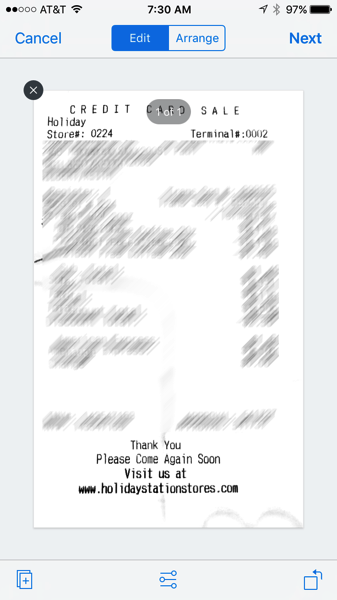
6. Once the document is captured, you can add pages, perform some basic editing, or rotate pages using the buttons at the bottom of the screen. When done, tap the Next button in the upper-right corner of the screen.
IMG 6019


7. Choose a location by tapping on “Save to”, and then tap “Save"

IMG 6021

8. The result? A PDF, filed right where you want it in your Dropbox storage.

IMG 6022

I was previously using a separate scan-to-pdf app on my iPhone, but I find the Dropbox scanning feature more quicker, easier, and more accurate.

For more info about this feature, see this Dropbox help article.

Are you taking advantage of all that Dropbox has to offer? Take a “deep dive” into Dropbox with my Up and Running with Dropbox course on Lynda.com or LinkedIn Learning.

Screen Shot 2015 12 08 at 10 43 24 AM

Thursday, January 07, 2016

Save Web pages to PDF using Dropbox

3 recently-added features of the Dropbox mobile app for iOS make it easy to convert a Web page to PDF for easy offline viewing. Why would you want to do this? Perhaps you’ve come across a long blog post that you want to save so you can read it later on an airplane or train. Or you’ve encountered an interesting current news article that you want to save because you are afraid it will archived or disappear behind a paywall in the future. Or perhaps you want to share an article with someone and you want to add a few comments to the article first.

Dropbox makes this easy. Here’s how (the screen shots are from an iPhone 6 running iOS 9.2):

1. Make sure you have the latest version of the Dropbox app installed on your iPhone or iPad

2. Navigate to the web page you want with Safari on your iPhone or iPad, then tap the share button at the bottom of the screen

One

3. Tap the Save to Dropbox icon

Two

4. If desired, rename the file and choose a specific Dropbox folder, then tap Save

Three

5. Launch the Dropbox app on your iPhone or iPad

Four

6. Tapping the Recents icon at the bottom of the screen should put the recently-created PDF file near the top of the Dropbox file list. Tap the PDF file.

Five

7. The PDF will open in the Dropbox app’s built-in PDF viewer. If you’d rather open the file in the Adobe Acrobat app (assuming you have the app installed), tap the Open With icon at the bottom of the screen.

Six

8. Tap Adobe Acrobat Reader

Seven

9. The PDF will open in Adobe Acrobat.

2016 01 07 08 52 57

In this tutorial you’ve learned about 3 recent additions to Dropbox: Save to Dropbox, Recents, and Open With Adobe Acrobat Reader. I hope you find this useful!

For many more Dropbox tips, see my Up and Running with Dropbox course at Lynda.com.

Wednesday, December 16, 2015

I've been busy!

I spent many hours the last few months writing and recording 2 brand-new courses for Lynda.com, and completely updated and re-recorded an existing course. All 3 courses have now been released. Check them out!

Screen Shot 2015 12 16 at 8 30 45 AM

In InDesign Scripting Made Easy I’ve created a course for InDesign users to learn how to obtain, install, use, create, and modify scripts to help automate repetitive design and production tasks. Every InDesign user should watch this course!

Screen Shot 2015 12 16 at 8 31 10 AM

In InDesign: Fixed-Layout EPUB Interactive Techniques & Publish Online I show how to add a wide variety of interactive effects to InDesign documents that will be output as either fixed-layou EPUB or Publish Online projects. I show how to create slideshows, animation, quizzes, audio and video, buttons that trigger actions, and much more.

Screen Shot 2015 12 16 at 8 32 17 AM

My popular Up and Running with Dropbox course has been viewed by thousands since I released it in April of 2014. Since the initial recording, a lot has changed in Dropbox-land, so I updated and re-recorded the entire course. Think you know how to use Dropbox? Watch the course, and I can almost guarantee that you’ll learn something!

Sunday, October 12, 2014

How to enable background photo uploading with Dropbox on iOS

The latest version of the Dropbox app for iOS devices (as of this post, version 3.4.2) has a cool feature for uploading photos on your phone to your Dropbox account without having to launch the Dropbox app. But this feature isn’t enabled by default, and it isn’t obvious how it works. In this post, I’ll show you how to enable this feature.

But first, I want to mention my “Up and Running with Dropbox" course at lynda.com. If you want to get more out of Dropbox, and learn all that this powerful service can do for you, watch this course!

Now, here’s how to enable background uploading of photos:

1.  Run the Dropbox app on your iPhone or iPad, and tap the “Settings” gear in the lower-right corner

2014 10 12 21 21 29


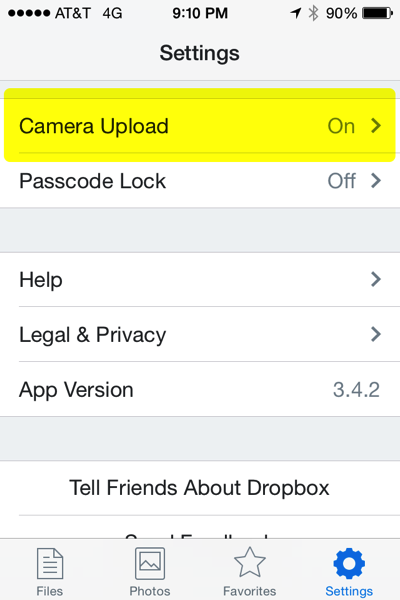
2. Tap the “Camera Upload” option


2014 10 12 21 10 45


3. Turn on the “Camera Upload” and “Background Uploading” options.


2014 10 12 21 10 55


4. Launch the “Settings” app.

5. You will see some of your apps listed at the bottom of the list of settings. Tap the “Dropbox” app in this list.

6. Enable “Background App Refresh”, and then tap the “Privacy” option.

2014 10 12 21 11 55


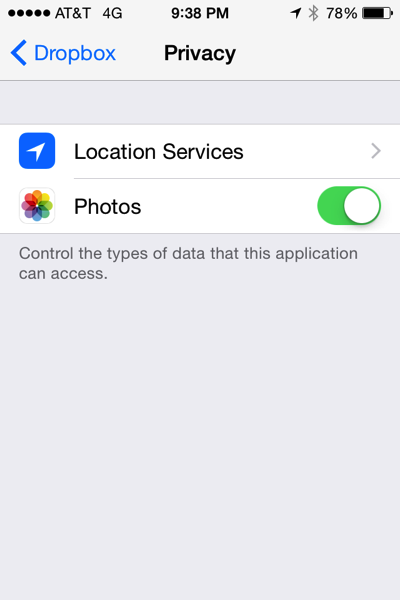
7. Turn on “Photos” so that Dropbox can access your Photos, then tap “Location Services”. 


2014 10 12 21 38 19

8. Choose “Always”.

2014 10 12 21 38 14

Because of Apple limitations, the Dropbox app is only allowed to upload for a short time after you quit the Dropbox app. The way that Dropbox gets around this is to use Location Services. whenever your location changes a significant enough amount, Dropbox will sense the location change, and an upload will occur. Try it! It works well for me.