Monday, February 08, 2010

Missing Pages Panel icons in InDesign

Clients from two separate companies in the last month have asked me the same thing: they've "lost" the icons that normally appear at the bottom of the Pages panel in InDesign, as pictured below.

In both cases, the solution was simple, just delete InDesign's preferences files, and the problem goes away! See this post for instructions on how to easily delete InDesign's preferences files.

Thursday, February 04, 2010

Changing InDesign's default font

Karen wrote and asked:

"I've searched but can't seem to find how to change the default font for InDesign. The default that comes up is Times Roman. Since i don't activate that font, I'd like it to be something else. Is there a way to change it?"

This is a question that comes up frequently. The answer is simple but not obvious:

1. Run InDesign, but don't open a document

2. With no document open, select the Type tool and use the fields in the Control panel to choose the font, size and any other attributes that you want for the defaults

3. Quit InDesign.

Now, the font that you chose in step two will be the default for all new documents that you create.

Flash Good or Flash Bad?

Apple's introduction of the iPad has created controversy because of its inability (along with the iPhone) to show or play any Flash content from Web sites. This has ignited a firestorm of articles, opinions, blog posts and lengthy comment threads on the Web about the pros and cons of including Flash content on a Web site, as well as the merits of Flash vs. competing technologies for delivering vector animation and video playback on the Web.

This controversy should be of interest to every designer today. Increasingly, designers are either already creating Flash content or are wanting to learn how to create Flash content. It's obvious that Adobe wants to provide tools for designers to allow them to create interactive design without coding, judging by projects like Flash Catalyst and the new Flash export capabilities found in InDesign CS4.

Here are a few recent links about this controversy:

  • Kevin Lynch, Adobe's CTO, shares his thoughts here and here.

  • John Nack, Principal Product Manager for Adobe Photoshop and frequent and eloquent blogger, has interesting posts here and here.

  • Mike Rankin weighs in here.

If you're wondering..."How bad could it be? How would my browsing experience change without Flash?" see this post from Seattle's CreativeTechs for a discussion of browser add-ons that will allow you to temporarily block Flash content while you browse. This is a quick way to get a feel for how many Web sites that you visit contain Flash content.

Wednesday, January 27, 2010

Three local educational opportunities

The InDesignSecrets Live, 2010 Tour with Anne-Marie Concepción is coming to Minneapolis on March 17. (I'll be one of the speakers at the InDesignSecrets Print and ePublishing Conference May 12-14 2010 at the Adobe Campus in Seattle, WA.) Contact me for a discount code for either of these events.

Flashbelt, a conference for "new media designers, developers and enthusiasts" is scheduled for June 13-16 2010 in Minneapolis.

An Event Apart, "an intensely educational two-day conference for passionate practitioners of standards-based web design" is coming to Minneapolis July 26-27 2010.

Monday, January 25, 2010

Pimp my Image Processor

The Image Processor in Photoshop CS4 is a simple, fast way to quickly resize and convert a bunch of images to JPEG, PSD or TIFF format. One shortcoming of the Image Processor is that if you use it to export JPEG images, they're converted to RGB. Thankfully, this Photoshop feature is written in JavaScript, which means that anyone who knows a bit of JavaScript and Photoshop can modify it.

Well, Mike Hale has done just that. He's tweaked the Image Processor script to add support for exporting CMYK JPEGs as CMYK, as well as support for exporting PNG images. You can download his modified script here. To install the script:

1. Unzip the downloaded file. Rename the Image Processor CS4 PNG.jsx file to Image Processor.jsx

2. In your Adobe Photoshop CS4/Presets/Scripts/ folder, move the file Image Processor.jsx into another folder somewhere as a backup

3. Copy the Image Processor.jsx file from step 1 into the Adobe Photoshop CS4/Presets/Scripts folder.

You can access the Image Processor script from either File > Scripts > Image Processor in Photoshop, or, better yet, from Tools > Photoshop > Image Processor in Bridge.

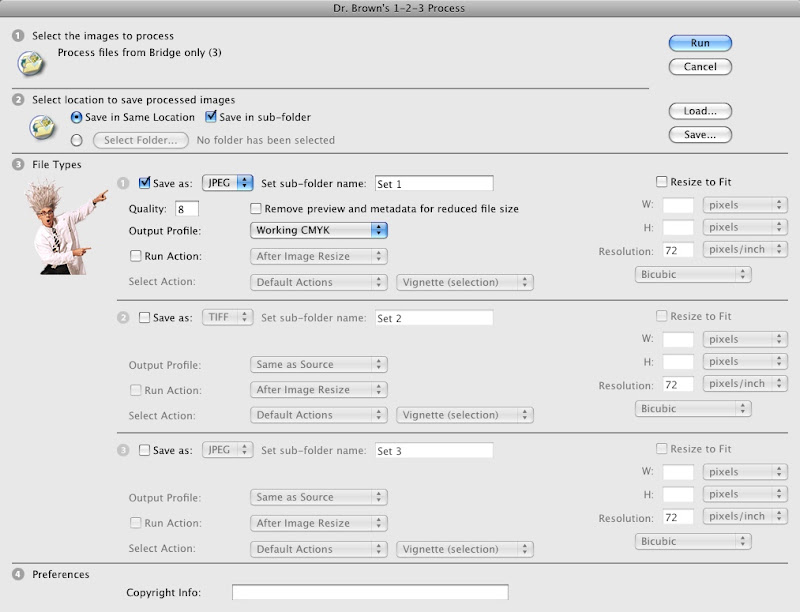
Another script for exporting CMYK JPEG images is the Dr. Brown's Services collection of scripts from Adobe's own Russell Brown. The Dr. Brown 1-2-3 Process script that's included with the collection allows you to not only export CMYK JPEGs as CMYK, but also to convert RGB to CYMK or vice versa while exporting.