Monday, July 30, 2012

InDesign to HTML5

If you're a frequent reader of this blog, you know that I'm a fan of Adobe Digital Publishing Suite for creating Apps from Adobe InDesign. But DPS isn't always a good fit for all types of projects. The cost may be prohibitive for some, or perhaps you don't want to be beholden to Apple's App Store Review Guidelines. Or perhaps you want to create output that works on desktop browsers as well as multiple tablets and smartphones.

Justin Putney, the designer and developer behind Ajar Productions, has proposed a Kickstarter project called InDesign to HTML5. He is seeking $5000 in funding via Kickstarter to create an InDesign plug-in to convert InDesign layouts to fully formatted HTML5 files.

I've known Justin for a few years, and have been impressed by some of the other products that he has developed. I think he can do it. I've put my money where my mouth is and pledged my financial support. If this sounds like something you could use, consider joining me and supporting Justin in this project.  

See also this article.

ScreenSnapz

Friday, July 13, 2012

The fastest workflow for previewing DPS apps

One time-consuming aspect of using Adobe Digital Publishing Suite to create tablet apps is the hassle of previewing design and interactivity on your tablet. With recent releases of DPS, in particular v21, this has gotten much better. Here are two workflows that allow you to preview your content on an iPad without needing to sign in to Adobe DPS with your Adobe ID and without relying on Adobe's DPS cloud hosting.

Workflow 1:

This workflow is really handy when you need to quickly try something in InDesign, and immediately see what it looks like on the iPad. You don't need to create a folio or anything.

1, Create an InDesign file that is the proper dimensions and orientation (don't forget about the templates I have available here)

2. Attach your iPad to your Mac (this workflow is Mac-only, unfortunately) via a USB cable. You don't need to start the iTunes application.

3. On your iPad, run the Adobe Viewer app

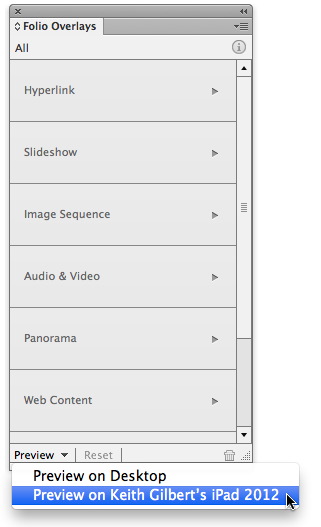
4. In the Preview drop-down menu at the bottom of the Folio Overlays panel (CS6) or Overlay Creator panel (CS5) choose "Preview on youriPadname". Your content will appear on the iPad screen.
Folio 1

Workflow 2:

This workflow is a good way to begin a project. It allows you to work completely local, without needing to sign in to Adobe DPS or use Adobe's DPS cloud hosting. I like to work locally as long as I am able. Only when I need to share a folio with others do I sign in and begin using the cloud hosting.

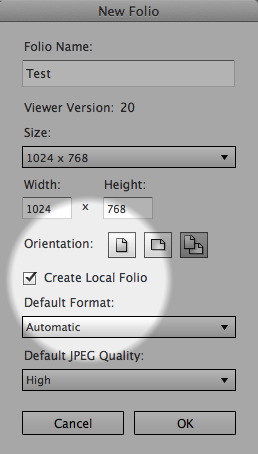
1. In the Folio Builder panel in InDesign, either a) don't sign in, and then click the New button at the bottom of the panel to make a new "local" folio or b) sign in, click the New button at the bottom of the panel, and select the "Create Local Folio" option in the New Folio dialog box
Folio 2

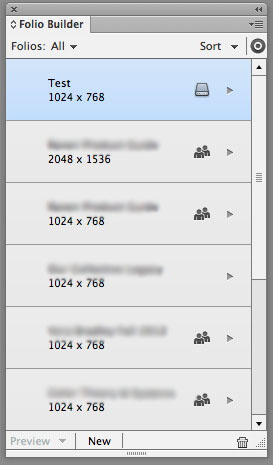
2. In the Folio Builder panel, the little hard drive symbol to the right of the Folio name indicates it is a local folio. If there is an icon of 2 people, or no icon, the folio is hosted in the cloud.
Folio 3

3. Add one or more articles to your folio. Articles are added quickly, with little delay, because they aren't being uploaded to the cloud.

4. To preview the entire folio on your iPad, In the Preview drop-down menu at the bottom of the Folio Builder panel choose "Preview on youriPadname". Your entire folio will appear on the iPad screen.

5. To preview a single article on your iPad, open the InDesign file for that article, then In the Preview drop-down menu at the bottom of the Folio Overlays panel (CS6) or Overlay Creator panel (CS5) choose "Preview on youriPadname". Your article will appear on the iPad screen.

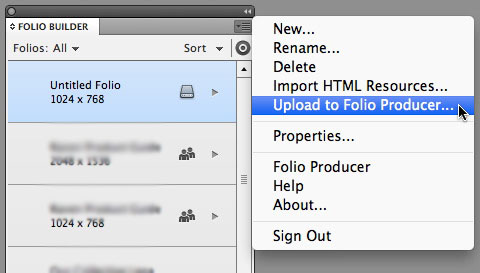
Using this workflow allows you to very quickly view design iterations and test interactivity on your iPad. Once you get to the point in your work where you need to share the folio with others, or if you are simply ready to begin the final publishing and submission process, sign in to DPS in the Folio Builder panel, select your local folio in the panel, and choose "Upload to Folio Producer".
Folio 4


Tuesday, June 26, 2012

Fantastic resource for creating App icons

If you create Apps for the iPad, iPhone, or Android devices, you are faced with the tedious task of creating App icons at various sizes. In order to submit an iPad app to the App store, for example, you need to submit your App icon in PNG format in seven different sizes.

To make this process much, much easier, Johannes Henseler has created a free Photoshop template. To use the template, you open a smart object on one of the Photoshop layers, and create your artwork in Illustrator or Photoshop in the smart object. Then, with a single click you can export icons in 15 different sizes all at once. Thanks Johannes!

If you've previously used this template, note that Johannes updated the template on 6/22/2012.


Template

Wednesday, June 20, 2012

The new Link icon in InDesign CS6

One of the big new features of InDesign CS6 is the ability to create "Linked Content". This feature allows you to have “parent” content that is linked to “child” content that can appear in several places in a single document, or spread across several documents. When the parent content is edited, you are given the option to update the content in all the other locations. You can learn more about this feature here.

But even if you don't care at all about Linked Content, there is one by-product of this new feature that affects almost everyone, in a good way. If you have your Frame Edges shown (View > Extras > Show Frame Edges), each linked image in your layout will display an icon in the upper-left corner. The icon indicates whether the image is linked, modified, or missing. This icon provides 3 benefits:

1. If the image is modified or missing, you can single-click on the icon to update the image or relink to a new image. This saves a trip to the Links panel!

2. If you hover over the link icon, the filename of the image is displayed.

3. If you option/alt click on the icon, the Links panel is opened and the image is selected in the links panel.

You can learn more about Linked Content and all the other new InDesign CS6 features in my new eBook the InDesignSecrets Guide To What's New In InDesign CS6. In this low-cost PDF eBook, I clearly describe how to use all the new features of CS6. You can purchase and download the eBook here.

Cover 1


Wednesday, June 06, 2012

Controlling how a link opens in Adobe DPS

When you create an InDesign hyperlink to a Web site, and then create an iPad app with Adobe Digital Publishing Suite, the link will by default open in an "in-app" browser. That is, a browser that is built in to your DPS app. This browser allows the user to navigate around the Web, and when finished, tap a "Done" button in the upper-left corner of the screen that returns the user back to the screen where they left off.

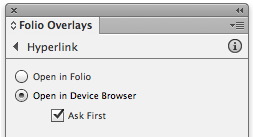
But if you look in the Overlay Creator panel (InDesign CS5) or Folio Overlays panel (CS6), you'll see that you can specify if the hyperlink should "Open in Folio" or "Open in Device Browser". If you choose the latter, when you tap the link, the app will quit and Safari will launch and open the link.

Overlay1


I've often wondered why you would want to do this, since it has a big disadvantage…it takes the user away from the app that you want them to spend time with. But this week a project I'm working on taught me why you might want a link to open in Safari.

I was building an app for a magazine that relies on reader donations. So the app contained a "Contribute Now" screen that explains to the user how much they rely on the user's generosity, and then directs them to the magazine's Web site where they can make a donation via credit card.

Apple's App Store Review Guidelines state that "The collection of donations must be done via a web site in Safari or an SMS."

I forgot about that, submitted the app, and got a note back from Apple saying in part:

"While donations may not be taken within an application, it is possible to provide a donation link to your web site. This link should launch Safari to collect the donation…We understand that directing your user outside of your app may not be the user experience you prefer to offer your users. However it is a common experience in a variety of iOS apps. And in the case of collecting donations for charities…it is also the required user experience."

I changed the relevant donation link to Open in Device Browser, and resubmitted the app.

By the way, you can't access the Hyperlink section of the Overlay Creator/Folio Overlays panel when a text hyperlink is selected. It only works when an object hyperlink is selected. So if you have a text hyperlink, you may need to place a frame with no fill and stroke over the text, and assign the hyperlink to the frame instead of the text.