Monday, February 25, 2019

Working with canvas size in Dimension

On thing that surprises new users of Adobe Dimension is that when you choose File > New to create a new file, you aren’t asked for a file size. For a product named Dimension it doesn’t seem to care much about dimensions! But the width and height of your Dimension file does make a difference and you need to pay attention to this.

When a file is open, click somewhere outside of the canvas, and in the Properties panel you’ll entries for Canvas Size width and height.

Screenshot 003

If you’re creating a Dimension scene for a real-world project, you certainly have specific size requirements. Let’s say you need the final file to be 4000px wide by 3000px high. Dimension is capable of this, but you might not want to begin your project at these dimensions. This is because the dimensions of the canvas have a big effect on rendering speed. So, in the early stages of a project, you might want to work at a lower resolution, but the same aspect ratio as your final requirements. So in this case, I’d work at 1000px x 750px size while I determined where to position my models and the basics of lighting and materials. This would allow Dimension to produce low-quality renders quickly so that I can see how the file is developing.

Then, once I’m confident of the direction that I want to take, I can increase the resolution of the canvas. Since the 3D models are vector, they will scale up cleanly to fit the new canvas size and you can continue working and complete your scene.

You can do math in any numeric field in the Properties panel. So a good way to scale up the canvas is just to enter the multiplication sign (an asterisk) followed by the multiplier. If you click the small padlock icon to the right of the height field, the canvas will be resize proportionally.

Screenshot 002

Want to learn more about Adobe Dimension? I wrote the book! See my Adobe Dimension CC Classroom in a Book recently released by Adobe Press.

Monday, February 11, 2019

How to select models in Adobe Dimension

Selecting models in Adobe Dimension is similar to selecting objects in InDesign or Illustrator, with a few unique differences that you might find confusing at first.


I've put together a short video to help you understand the various ways to select models in Dimension.


Want to learn more about Adobe Dimension? See the Adobe Dimension CC Classroom in a Book that I wrote for Adobe Press.

Tuesday, February 05, 2019

How to transform models in Adobe Dimension

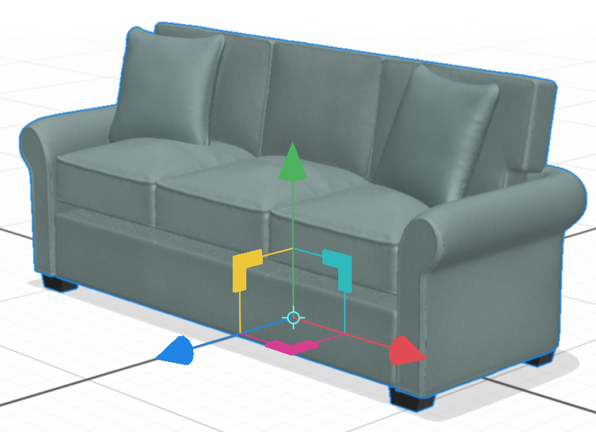
In order to use Adobe Dimension effectively you need to know how to use the “transformation widget” to move, scale, and rotate models.
Adobe Dimension CC screenshot 001
I’ve put together a video that will help you understand how to use the transformation widget with the Select and Move, Select and Scale, and Select and Rotate tools.


Want to learn more about Adobe Dimension? See the Adobe Dimension CC Classroom in a Book that I wrote for Adobe Press.

Tuesday, January 29, 2019

Find free content to get started with Adobe Dimension

Adobe Dimension is a fantastic program that allows anyone to create realistic images from 3D assets for branding, identity, product shots, or just for fun!

But for many people, the barrier to entry to getting started with Adobe Dimension is locating 3D assets to use. Perhaps you’re a graphic designer and you’ve created an identity for a gourmet food company, and you want to show what the identity will look like on a variety of food packages such as jars, cans, boxes, pouches, etc. Or you want to show a screen from your Web site displayed on screens of various mobile devices, posed in realistic settings. To accomplish either of these things, you’ll need high quality 3D models of jars, cans, boxes, pouches, and mobile devices. Where can you get these?

Right in Dimension you’ll see a variety of “Starter Asset” models that are free and can be used in your project with a single click.

Screenshot 2019 01 29

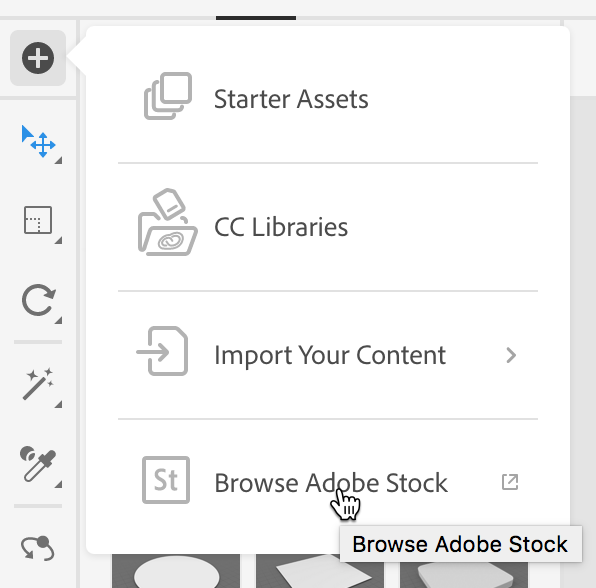
But likely you’ll need more than this. The best place to look next is Adobe Stock. You can easily access Adobe Stock from within Dimension by clicking the Add and Import Content button at the top of the Tools panel and choosing Browse Adobe Stock.

Selecting Browse Adobe Stock from the Add and Import Content button

This will launch your Web browser and display a “sampler” of a few dozen free models available on Adobe Stock. 

Google ChromeScreenSnapz003

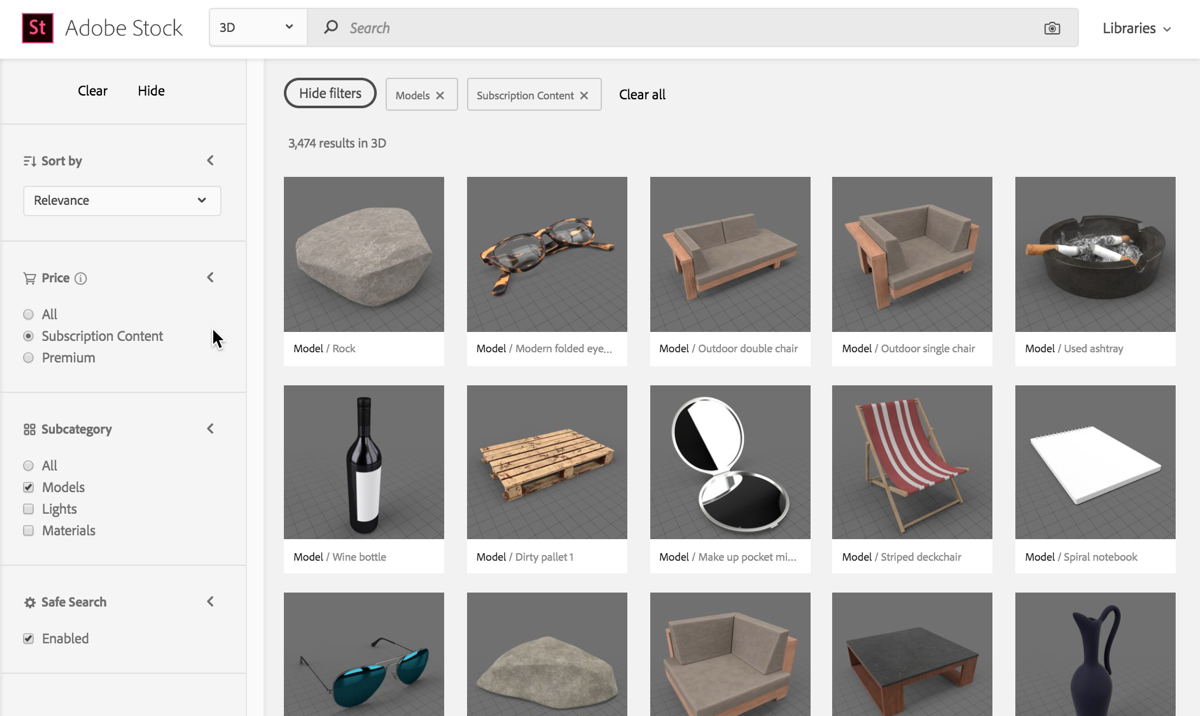
You might conclude that these are the only free models available on Adobe Stock. But there are actually hundreds of free images available! Unfortunately, there isn’t any way to search for only free images.

This link will display all of the non-premium 3D models available on Stock. As of today, that is 3,474 models, hundreds of which are free.

Google ChromeScreenSnapz004

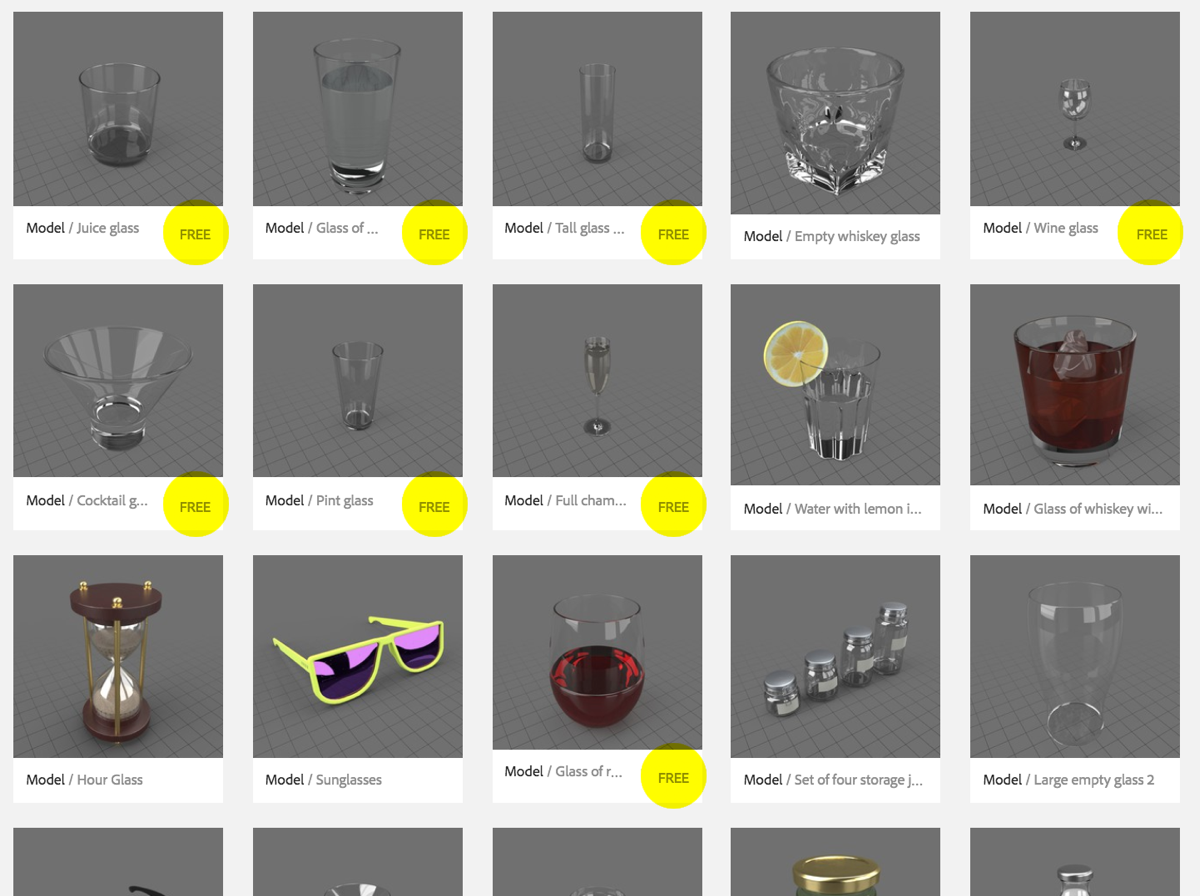
Searching for “glass”, for example, you’ll discover several free images mixed in with the results.

Google ChromeScreenSnapz005 copy

So, while there is no way to filter in Adobe Stock to display only free 3D models, there are hundreds available…you just need to dig. And, these models are optimized and tuned to work flawlessly in Dimension.

Want to learn more about Adobe Dimension? See the Adobe Dimension CC Classroom in a Book written by yours truly!

Monday, March 26, 2018

Adobe to discontinue Muse and Business Catalyst

Today Adobe announced that Adobe Muse and Adobe Business Catalyst will not be developed any further. I’m saddened by this, as I used both products, and believe they filled a specific niche in the industry. But apparently that niche wasn’t profitable or worth pursuing for Adobe.

Muse:

"On March 26, 2018 we will release the final feature improvement release of Adobe Muse. We will continue to offer technical support to all active Creative Cloud customers until May 20, 2019.” Read more here.

It appears that Adobe is considering extending Adobe Spark to allow creation of full Websites:

"Adobe Spark, powered by 30+ years of Adobe’s design intelligence, will soon bring a better way to build websites. Create beautiful, modular, and responsive websites from scratch—in minutes. Just add your text, photos, videos and more, and Spark will give you beautiful results.” Read more here. Oddly, there is no mention of, or link to, this effort in the Muse announcement.

Business Catalyst:

"Adobe is committed to delivering exceptional software and services to our customers. It’s in our nature to innovate and try new things, and it was in this spirit that we acquired Business Catalyst in 2009. As we re-focus on products that broadly provide our customers with the most value, Adobe is announcing the end of development for Business Catalyst as of March 26th, 2018. New sites will no longer be available for purchase starting with June 18th, 2018.  

Adobe will stop hosting existing sites on Business Catalyst on March 26th, 2020. Adobe encourages customers to download their data and migrate to other systems well before March 26th, 2020. Detailed how-to information and assistance is available. Customers' data will be retained by Adobe until March 26th, 2020, after which date the data will be deleted. Data retention is for the sole purpose of allowing customers to export their data and transfer to another platform.” Read more here.