Friday, March 14, 2014

New "must-have" plug-in for DPS

I just gave the new Object States Assistant plug-in from Automatication a whirl. All I can say is, if you do Adobe Digital Publishing Suite work, you must have this plug-in. Period.

The cornerstone of creating interactive content for DPS is multi-state objects (mso’s) and buttons. Complex interactive content can result in mso's with lots of states, and lots of buttons. The Objects States Assistant plug-in adds a bunch of missing commands for working with mso’s that should be included with InDesign, but are not. For example, you can:

- Add selected objects to all states in a single operation, and the objects stay in place and don’t lose their button actions

- Add objects to multiple states in a single operation, and the objects stay in place and don’t lose their button actions

- Paste objects into all states in a single operation, and the objects don’t lose their button actions

- Delete multiple states in a single operation

- Release multiple states in a single operation

- “Step and repeat” a single button and have each new button point to a different state in the mso

- Quickly display the next/previous state with a single button click

These commands are available through the OSA panel, which can be found in Window > Interactive > Object States Assistant, and also in the States panel menu. In the image below, I’ve docked the OSA panel with the State panel.

ScreenSnapz

Of course, you can add keyboard shortcuts with InDesign’s Keyboard Shortcut Editor to any of these new commands, making it even more useful.

Wednesday, March 05, 2014

2 Adobe DPS Webinar recordings to watch

I recently did 2 live Webinars for Adobe about the Adobe Digital Publishing Suite workflow. Below are links to recordings of the webinars if you’d like to watch them at your leisure. 

The first Webinar, presented on 1/16/2014, is titled “How to Create Content for Adobe DPS Apps”. You can watch the recording here.

The second Webinar, presented on 2/4/2014 is titled “How to Build Your First App and Submit it to the Apple App Store”. You can watch the recording here.

Monday, March 03, 2014

Global vs. Non-Global colors in Illustrator

Here’s an old feature of Illustrator that I find that people consistently don’t know about:

When you create a color swatch in InDesign, and then assign that swatch to a bunch of objects, when you later change the color of the swatch, all the objects that were colored with that swatch change also.

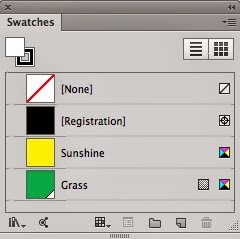
But Illustrator swatches behave completely different. By default, Illustrator process-color swatches are “non-global swatches”. This means that you can color objects with those swatches, but if you later change the swatch color, the objects do not change color. In other words, the swatch is used to initially color the object, but that’s it. There is no connection between the object and the swatch once the object is colored with the swatch.

However, you can make any swatch “global” by choosing this in Swatch Options. A global swatch in Illustrator behaves like the swatches in InDesign. When you apply a global swatch to an object, it is “assigned” to that object forever, so if you change the color of the global swatch later, the color of the object updates.


ScreenSnapz003

Global swatches appear in the swatches panel with a small white triangle in the bottom right corner.

ScreenSnapz002

This discussion only applies to process colors. Spot colors are always global in Illustrator. For more information, see the Illustrator help topic about this.

Monday, February 17, 2014

Force InDesign to Recompose

Did you know that InDesign has an obscure keyboard shortcut to “force” a recompose of all the text in the document? This “Recompose All Text” shortcut (command-option-/ [Mac] ctrl-alt-/ [Windows]) has been around for many years. But I’ve suddenly found myself needing to use it several times in the last couple of weeks. Why?

More automation features have been added to each upgrade of InDesign. Some of these features require almost constant “background” recalculation and recomposition of text, columns, line endings, page breaks, etc.

For example, the addition of Smart Text Reflow (new in InDesign CS4) requires InDesign to “rethink” pagination every time a text change or change to the size or shape of text frames is made. Today I had a very complex long file that would not flow the text past page 1 until I hit the Recompose All Text shortcut, and then it flowed perfectly.

The awesome Auto-Size Text Frame feature (new in InDesign CS6) is supposed to adjust the size of a text frame any time that the text changes within the frame. But I’ve run into obscure situations when an Auto-Size Text Frame that contains anchored graphic doesn’t automatically resize, and I need to hit the Recompose All Text shortcut to force the frame to resize.

Other highly-automated features that I’d expect to sometimes require this shortcut include: footnotes, text variables, conditional text, cross references, live captions, and automatic paragraph numbering. Any time that your screen doesn’t seem to redraw properly, the Recompose All Text shortcut is worth a try.

Tuesday, February 11, 2014

Submit your best DPS work to the Adobe DPS Gallery

Do you have a tablet or phone app you’ve created that you’re proud of? Adobe has created the Adobe Digital Publishing Suite Showcase Gallery, and encourages submissions to the gallery.

The gallery is using the Behance platform, so to submit a project, you need to join Behance. Full instructions on submitting your work are located here.

Browsing through the gallery is a great way to locate some high-quality DPS-created apps that you can then download to your tablet for closer examination.

ScreenSnapz001

(Don’t forget, if you have a Creative Cloud subscription, a Behance Prosite is included free!