Thursday, January 09, 2014

Illustrator guide tricks

Illustrator CC has a couple of new features for creating ruler guides:

1. Double-click on a horizontal or vertical ruler to create a guide at that location. Add the shift key when you double-click to snap the guide to the closest tick mark on the ruler.

2. To create both a horizontal and a vertical guide at the same time, drag from the intersection of the horizontal and vertical rulers while holding down the command key (Mac) or ctrl key (Windows).

Bonus tip: (This isn’t new in CC, and I don’t recall how many versions back this one works.) Normally, ruler guides span the entire canvas, which can be a messy problem if you are using multiple artboards. To create a guide that is limited to the current artboard, choose the Artboard tool (shift-o) and drag the guide out of the rulers with that tool.

Thursday, December 12, 2013

Blend mode trick

I was working on an InDesign project, and was using white arrows and black arrows on top of various images to indicate swipe direction for an Adobe Digital Publishing Suite project. The white arrow worked great on dark images, and the black arrow worked great on light images. But then I ran into an image that had a half dark/half light background. What to do? InDesign's Blend Modes to the rescue.

1. Create an arrow, and fill it with white (the [Paper] color in most projects)

ScreenSnapz004

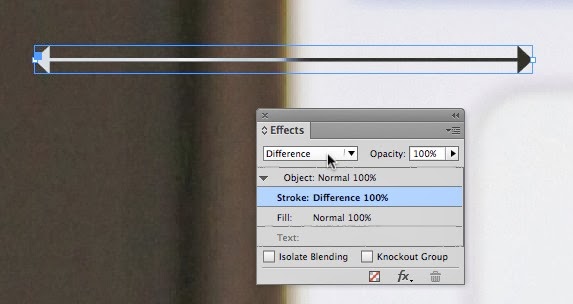
2. Use the Effects panel (Window > Effects) to change the Blend Mode of the stroke to Difference.

ScreenSnapz005

3. The result? An arrow that is light where it appears on a dark background, and dark on a light background.

ScreenSnapz006

This technique will also work in Illustrator, Photoshop, and After Effects, since these programs all feature a "Difference" blend mode.

Wednesday, November 20, 2013

How to apply multiple gradients to a Photoshop layer mask

Its easy to mask part of an image by creating a layer mask and dragging a white to black gradient on the mask. But what if you want to had 2 or more gradients in a single mask? This can be a bit of a head-scratcher. Here's how:

1. Create a new, blank layer mask by choosing Layer > Layer Mask > Reveal All.

ScreenSnapz001

2. Click on the mask in the Layers panel. 

3. Select the Gradient tool in the Tools panel.

ScreenSnapz002

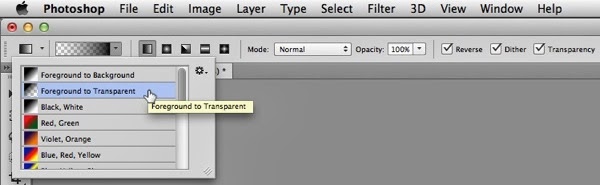
4. In the Options bar, choose Foreground to Transparent for the type of Gradient, and set the other options in the bar as shown below.

ScreenSnapz005

5. Choose black for your foreground color.

ScreenSnapz004

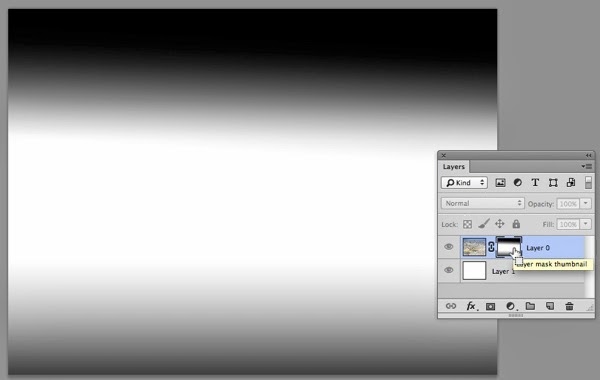
6. To achieve the result below, I dragged from just above the center of the image to the top edge of the image, and then again from just below the center of the image past the bottom edge of the image, masking the top and bottom areas of the image and revealing the white layer underneath.

ScreenSnapz006

7. Option/Alt-click on the layer mask icon in the Layers panel to view the mask full-size. Option/Alt-click on the icon a second time to view the completed image.

ScreenSnapz007

Wednesday, November 06, 2013

Specific fonts required to run Illustrator and Dreamweaver

Beware: if you don't have all four styles of Verdana (regular, bold, italic, and bold italic) installed, Illustrator CC will crash. Many users basically ignore Verdana. Installing Microsoft Office, and perhaps other apps, may install new versions of Verdana and Tahoma, which could screw things up and cause Illustrator to crash.

More information about this can be found on the Illustrator forum.

To run Dreamweaver CC, you must have Verdana and Tahoma installed. But at least Dreamweaver notifies you of the problem.

ScreenSnapz001

Tuesday, November 05, 2013

Creative Cloud and data security

A frequent complaint that I hear is "my IT department won't let us move to Creative Cloud because of data security fears." Adobe has created a PDF titled "Adobe Creative Cloud Security FAQ for IT". Contents include answers to questions such as "Where is Creative Cloud hosted?" and "Do the provided services support encryption?"

See also the Creative Cloud FAQ for more information about security. 

Perhaps passing these resources on to your IT department will help "grease the skids" for your migration to Creative Cloud!